Google

Saturday, November 20, 2021

iPhone 13 Pro: First Time Setup


1. Press and hold the side button. Release when Apple logo appear.

2. English

3. Select Your Country or Region: [Country]

4. Quick Start: Set Up Manually

5. Written and Spoken Languages > Continue

6. Choose a Wi-Fi Network: [ap_name]

7. Enter Password:
   Password: [password]
   Join
   Next

8. Data & Privacy: Continue

9. Face ID: Set Up Later

10. Create a Passcode:
    Passcode: [passcode]
    Re-enter your passcode: [passcode]

11. Apps & Data: Don't Transfer Apps & Data

12. Apple ID:
    Apple ID: [Email]
    Next

13. Password: [apple_id_password]
    Next

14. Apple ID Security: Continue

15. Phone Number:
    xxxxxxxxx
    VERIFY USING: Text message
    Next

16. Verification Code: [6_digit_sms_code]

17. Terms and Conditions: Agree

18. Keep Your iPhone Up to Date: Continue

19. Location Services: Disable Location Services

20. Disable Location Services?: OK

21. iCloud Keychain: Don't use iCloud Keychain

22. Siri: Set Up Later in Settings

23. Screen Time: Set Up Later in Settings

24. Analytics: Don't Share

25. Appearance: Dark
      Continue

26. Display Zoom: Standard
      Continue

27. Welcome to iPhone: Swipe up to get started

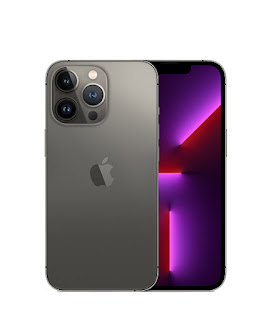
iPhone 13 Pro: Graphite 128GB


In The Box

• iPhone 13 Pro Graphite 128GB
• USB-C to Lightning Cable
• SIM Ejector Tool
• Documentation

COOL’s
• 6.1" Super Retina XDR Display with ProMotion with adaptive refresh rates up to 120Hz
• IP68 Splash, Water and Dust Resistant
• A15 Bionic Chip
• Pro 12MP TrueDepth Camera
• 4K video recording up to 60 fps
• Face ID
• Fast charge up to 50% charge within 30 minutes with at least 20W adapter
• iOS 15

SUCX’s
• Pricey
• MagSafe wireless charging up to 15W
• NO power adapter and Earpod
• Full body phone and back camera protector is a MUST
• No support for external storage

URL: https://www.apple.com/my/iphone-13-pro/

Saturday, July 17, 2021

SAMSUNG Galaxy Tab A7: Remove Weather Widget


1. Press and hold on Weather icon on Home screen

2. Remove

Securing SAMSUNG Galaxy Tab A7 With Avast Mobile Security


1. Play Store > Search for 'Avast Mobile Security'

2. Avast Antivirus - Scan & Remove Virus, Cleaner > Install

3. Open

4. SCAN NOW

5. Allow Avast Mobile Security to access photos, media and files on your device?: Allow

6. Continue with free > CONTINUE AS FREE

7. Scan Wi-Fi > Allow Avast Mobile Security to access this device's location?: While using the app

8. Boost RAM > GRANT PERMISSION > Avast Mobile Security > Allow usage tracking: ON

9. Clean junk > No junk to clean now > <-

10. Settings > Protection
    Web Shield: Enable > AGREE > GO TO SETTINGS > Installed services > Avast Mobile Security > On > Allow

11. HOME > SCAN > CONTINUE > KEEP BASIC SECURITY

12. Automatic Wi-Fi scanning disabled: ACTIVATE

13. Activate Daily scan: ACTIVATE
      Scan time: 03:30 > OK
      <-

SAMSUNG Galaxy Tab A7: Uninstall/ Disable Unwanted Apps

  
A. If the Apps come with Uninstall option:
 
1. Settings > Apps > [Google Play Movies & TV]

2. Uninstall > OK
 
B. If the Apps come with Disable option:

1. Settings > Apps > [Netflix]

2. Disable > Disable app