Google

Friday, December 22, 2017

Amazon Echo Dot (2nd Generation) Black


In The Box
• Echo Dot 2 Black
. 9W Power Adapter
. Micro-USB cable
. Quick Start Guide.

COOL’s
• Smart speaker for any room
• Voice control for music (Required Spotify or Amazon Music)
• Voice control smart home (Required smart home devices)
• Voice recognition
• Always smarter with Alexa
. Skills
. Simple setup and use with Alexa Apps

SUCX’s
• Amazon Alexa app (Android, iOS) NOT Available outside US
• Does not shipped to Malaysia
• Support for smart home devices pricey
• Conflicted response if 2 device put close to each other

Monday, February 13, 2017

Create macOS Sierra Bootable USB Drive Using Disk Creator

1. Download and install Disk Creator
2. Download macOS Sierra Installer

3. Insert an empty 8GB or bigger USB drive. 

4. Launchpad > Other > Disk Utility

5. Under External > click on Generic Flash Disk Media > Click Erase. Enter the following:
   Name: macOS 
   Format: Mac OS Extended (Journaled)
   Scheme: GUID Partition Map
   
6. Click Erase

7. Click Done

8. Open Disk Creator. 
   Select the volume to become the installer: macOS
   Select the OS X installer...: [Browse to Install macOS Sierra.app]

9. Click on Create Installer. Enter macBook user password > click OK.

10. Bootable disk creation in progress...

11. Click OK

12.Insert the Bootable USB disk and power up the macBook. Press option key. Select Install macOS Sierra image. Click on UP arrow underneath.

Sunday, February 12, 2017

Install Disk Creator - Mac OS X


ABOUT
Disk Creator used to assist of creating Mac OS X bootable installer

1. Download Disk Creator installer from:

    https://macdaddy.io/InstallDiskCreator.zip

2. Double click on 'InstallDiskCreator.zip'.


3. mv Install Disk Creator.app /Applications/

4. Finder > Applications. 


5. Double click on 'Install Disk Creator.app'

URL: https://macdaddy.io/install-disk-creator/

Saturday, December 31, 2016

Upgrade OS X El Capitan to macOS Sierra

REMARK: Always perform full backup before upgrade

1. App Store > Search 'macOS Sierra'.

2. Click DOWNLOAD button under 'macOS Sierra'. Wait for downloading of 4.95GB to complete.

3. Launchpad > Click 'Install macOS Sierra'.

4. Click 'Continue'.

5. Click 'Agree'.

6. Click 'Agree'.

7. Click 'Install'.

8. Enter MacBook administrator user password > Click 'Add Helper'.

9. Installation in progress.

10. Click 'Restart'.

11. Click 'Close Other Applications...'.

12. MacBook will be restarted and installation in progress.

13. Select 'Don't sign in' > Click 'Continue'.

14. Uncheck 'Enable Siri on this Mac' > Click 'Continue'.

15. To verify, click on 'Apple' icon > About This Mac

Tuesday, October 25, 2016

Install Gboard on iPhone 6s


What is it?
Gboard by Google currently available for iPhone. This cool keyboard offer GIFs, emojis, and Glide Typing + Google Search built in.                             

Steps
1. App Store > Search > Gboard > GET

2. OPEN > GET STARTED 

3. Settings > General > Keyboard > Keyboards

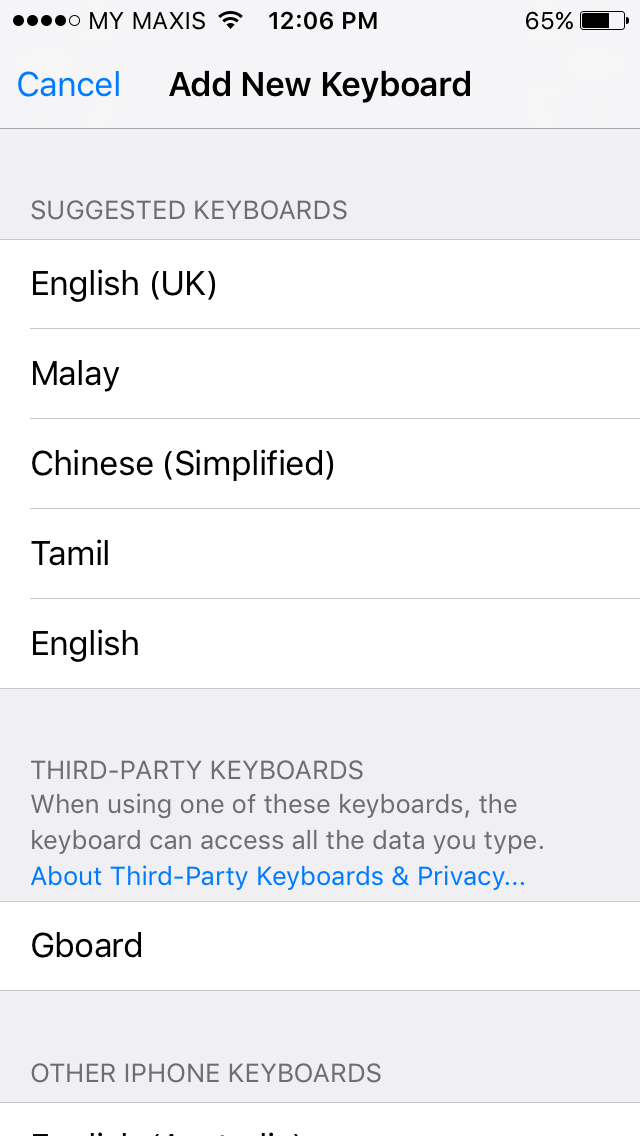
4. Add New Keyboard... > Gboard


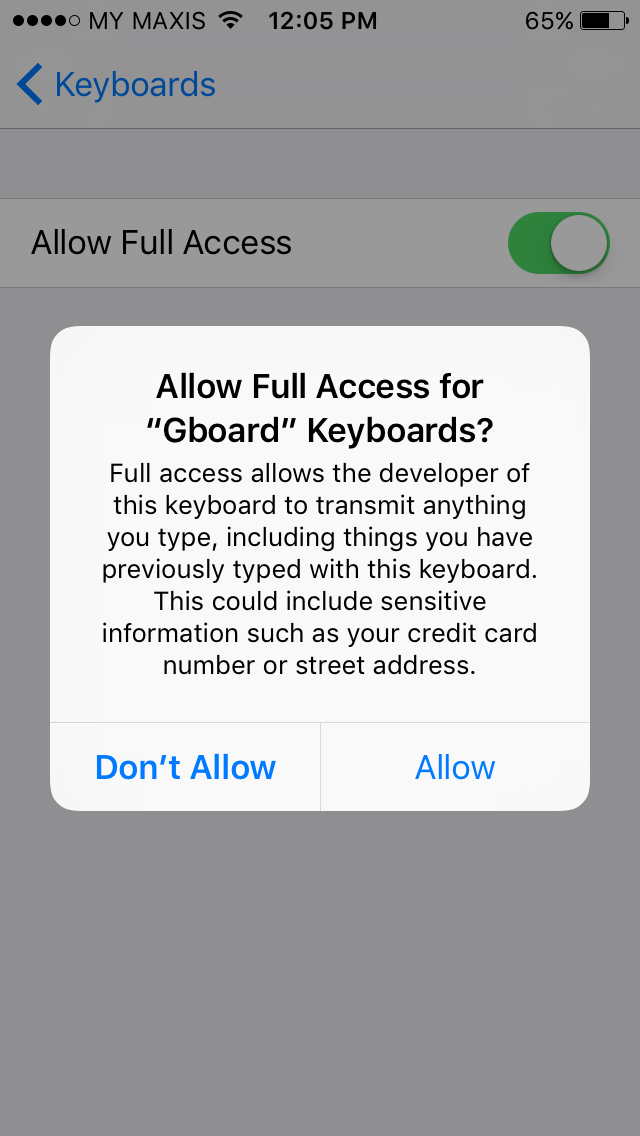
5. Gboard > Allow Full Access > Allow