Google

Thursday, March 3, 2016

Recover Undetectable SATA Hard Disk

If you encounter the following symptoms:
. The disk undetected by operating system
. The disk undetected by BIOS
. There are clicking sound on the disk

MATERIAL:

1. Undetectable SATA hard disk
2. 4 - 5 pcs of newspaper
3. Plastic bag/ Zipper bag


4. SATA to USB Connector
5. Fridge


STEPS:

1. Wrap the disk with 4 - 5 pcs of newspaper

2. Insert the wrapped disk into plastic/ zipper bag.
   CAUTION: Make sure it's tightly seal to avoid water from damaging the disk


3. Place the seal disk into fridge (frozen compartment). Kept for 5 - 6 hours.

4. Remove the disk from fridge. Still sealed, kept under normal room temperature for overnight/ 12 hours.

5. Unseal and unwrapped the disk. Connect the disk to laptop using SATA to USB connector.

6. Once the disk detected by the system, proceed to backup all the data to a new disk. There are high possibility the disk will be malfunction again.

Disclaimer: Follow at your own risk. If you are unsure of any steps mention above, do seek professional advice before proceed.

Tuesday, March 1, 2016

Upgrade OS X Yosemite to El_Capitan

REMARK: Always perform full backup before upgrade

1. Click Apple Menu on top-left corner > Software Update... > Updates > OS X El Capitan Free Upgrade

2. Enter Apple ID. Downloading of 6.19GB

3. Continue

 
4. Agree > Agree 

5. Install

6. Enter MacBook administrator user password. 

7. Installation in progress

8. Restart

9. Close Other Applications...

10. Click Don't sign in > Continue

11. Skip

12. Continue

URL: https://support.apple.com/en-us/HT201475

Thursday, January 14, 2016

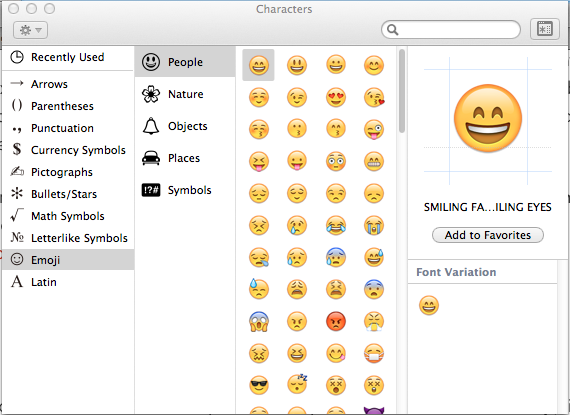
Use Emoji Keyboard on MAC OS X

1. On text document, click on where the emoji will appear.

2. Press 'command' + 'control' + 'space bar' key.

3. On 'Characters' palette, click on 'Character Viewer' icon located on the top right.

4. Click on Emoji on left hand panel > Click on desire sub-category > Click on desire emoji

5. To close, click on 'x' located on top left.

Tuesday, January 5, 2016

Enable Chinese Pinyin Input on MAC OS X

1. Click on Apple icon > System Preferences... > Language & Region

2. Click '+' under Preferred languages:

3. Highlight '简体中文 - Chinese, Simplified' > Add

4. Choose 'Use English' on 'Would you like to use Chinese (Simplified) as your primary language?'


5. Select 'Pinyin - Simplified' > Add Input Source


6. Click Keyboard Preferences...


7. Check 'Show Input menu in menu bar'


To enable keyboard shortcut to switch between input:

8. Click Keyboard Preferences... > Shortcuts > Input Sources


9. Check 'Select the previous input source' > Double click on the current pre-defined shortcuts


10. Hold the 'Command' key + 'N' key > The shortcut key had changed to 'Command'+'N'

Monday, October 26, 2015

DiskPart on Windows 10

DiskPart - Text-mode command interpreter use to manage objects (disks, partitions, or volumes) by using scripts or direct input from a command prompt.

1. Open Command Prompt. Enter diskpart


2. To display list of disks:
DISKPART> list disk

  Disk ###  Status         Size     Free     Dyn  Gpt
  --------  -------------  -------  -------  ---  ---
  Disk 0    Online          298 GB      0 B
  Disk 1    Online         7800 MB      0 B

3. Selects the specified disk:
DISKPART> select disk 1

  Disk 1 is now the selected disk.

4. To displays partitions of specified disk:
DISKPART> list part

  Partition ###  Type              Size     Offset
  -------------  ----------------  -------  -------
  Partition 1    Primary           7799 MB    32 KB

5. To remove partition/s on specified disk:
DISKPART> clean

   DiskPart succeeded in cleaning the disk.

6. To create 4GB primary partition:
DISKPART> create part primary size=4096

  DiskPart succeeded in creating the specified partition.

7. To mark current partition as active:
DISKPART> active

  DiskPart marked the current partition as active.

8. To quick format current partition as FAT file system:
DISKPART> format fs=fat quick

  100 percent completed

  DiskPart successfully formatted the volume.

9. To assigns a drive letter to current volume:
DISKPART> assign

DiskPart successfully assigned the drive letter or mount point.

URL: https://technet.microsoft.com/en-us/library/bb490893.aspx?f=255&MSPPError=-2147217396