Google

Friday, March 11, 2016

Soution: yum update failed with error, "[Errno 14] PYCURL ERROR 22 - "The requested URL returned error: 404 Not Found"

SYMPTOM:

yum update failed with error, '[Errno 14] PYCURL ERROR 22 - "The requested URL returned error: 404 Not Found'
  http://olcentgbl.trafficmanager.net/centos/6/updates/x86_64/Packages/nss-util-3.19.1-5.el6_7.x86_64.rpm: [Errno 14] PYCURL ERROR 22 - "The requested URL returned error: 404 Not Found"

AFFECTED OS:
  • RHEL 6
  • CentOS 6
SOLUTION:

1. Login as root

2. Verify the RHEL/ CentOS is the latest version ---> rpm -q centos-release
     centos-release-6-7.el6.centos.12.3.x86_64

3. yum clean all
    Loaded plugins: security
    Cleaning repos: base epel extras openlogic updates
    Cleaning up Everything

4. yum update

Soution: yum update failed with error, "Not using downloaded repomd.xml because it is older than what we have"

SYMPTOM:

yum update failed with error, 'Not using downloaded repomd.xml because it is older than what we have'
  Loaded plugins: security
  Setting up Update Process
  base                                                     | 3.7 kB     00:00
  Not using downloaded repomd.xml because it is older than what we have:
    Current   : Fri Mar  4 23:01:31 2016

    Downloaded: Wed Aug  5 05:24:45 2015

AFFECTED OS:
  • RHEL 6
  • CentOS 6

SOLUTION:

1. Login as root

2. Verify the RHEL/ CentOS is the latest version ---> rpm -q centos-release
     centos-release-6-7.el6.centos.12.3.x86_64

3. yum clean all
    Loaded plugins: security
    Cleaning repos: base epel extras openlogic updates
    Cleaning up Everything

4. yum update

Thursday, March 3, 2016

Recover Undetectable SATA Hard Disk

If you encounter the following symptoms:
. The disk undetected by operating system
. The disk undetected by BIOS
. There are clicking sound on the disk

MATERIAL:

1. Undetectable SATA hard disk
2. 4 - 5 pcs of newspaper
3. Plastic bag/ Zipper bag


4. SATA to USB Connector
5. Fridge


STEPS:

1. Wrap the disk with 4 - 5 pcs of newspaper

2. Insert the wrapped disk into plastic/ zipper bag.
   CAUTION: Make sure it's tightly seal to avoid water from damaging the disk


3. Place the seal disk into fridge (frozen compartment). Kept for 5 - 6 hours.

4. Remove the disk from fridge. Still sealed, kept under normal room temperature for overnight/ 12 hours.

5. Unseal and unwrapped the disk. Connect the disk to laptop using SATA to USB connector.

6. Once the disk detected by the system, proceed to backup all the data to a new disk. There are high possibility the disk will be malfunction again.

Disclaimer: Follow at your own risk. If you are unsure of any steps mention above, do seek professional advice before proceed.

Tuesday, March 1, 2016

Upgrade OS X Yosemite to El_Capitan

REMARK: Always perform full backup before upgrade

1. Click Apple Menu on top-left corner > Software Update... > Updates > OS X El Capitan Free Upgrade

2. Enter Apple ID. Downloading of 6.19GB

3. Continue

 
4. Agree > Agree 

5. Install

6. Enter MacBook administrator user password. 

7. Installation in progress

8. Restart

9. Close Other Applications...

10. Click Don't sign in > Continue

11. Skip

12. Continue

URL: https://support.apple.com/en-us/HT201475

Thursday, January 14, 2016

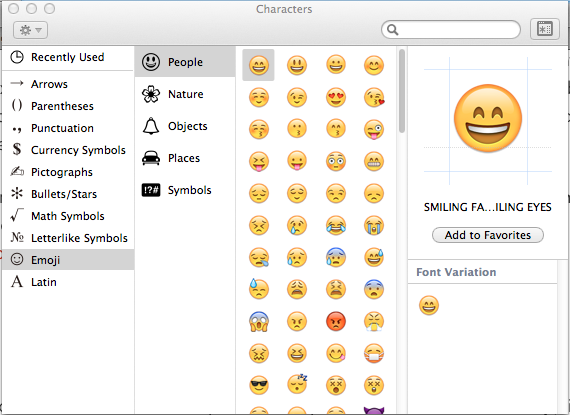
Use Emoji Keyboard on MAC OS X

1. On text document, click on where the emoji will appear.

2. Press 'command' + 'control' + 'space bar' key.

3. On 'Characters' palette, click on 'Character Viewer' icon located on the top right.

4. Click on Emoji on left hand panel > Click on desire sub-category > Click on desire emoji

5. To close, click on 'x' located on top left.