Google

Saturday, January 17, 2026

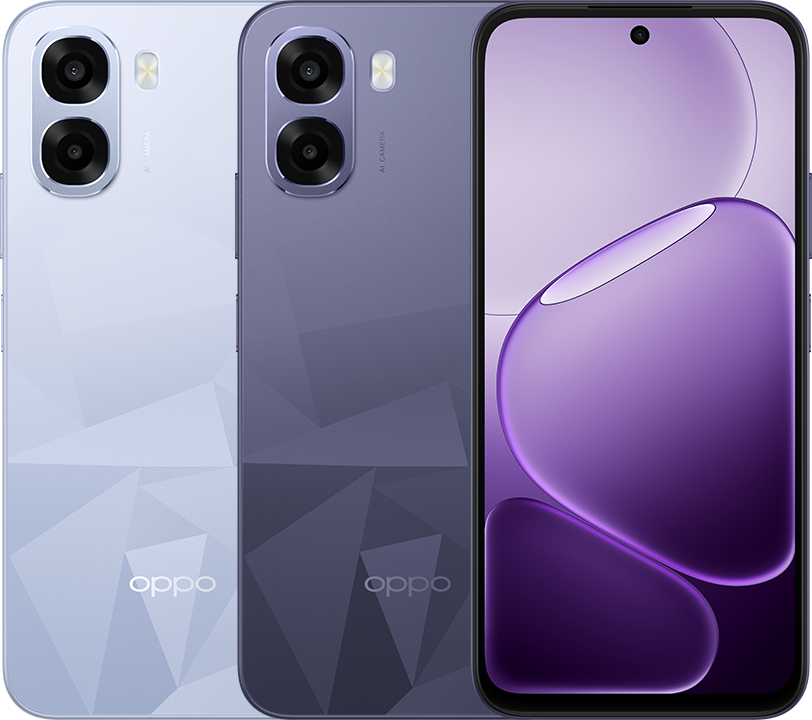
Setup OPPO A6t 5G Crystal Blue (CPH2853)

 OPPO A6t 5G

 1. Hold Power button for few second > OPPO > ColorOS

2. Hello ->

3. Select language:
   English
   Next

4. Select region:
   Malaysia
   Next

5. Legal information > Next

6. Set up using another device:
    Information > OK

6.1 Set up using another device > Skip

7. Connect to Wi-Fi
    [Wi-Fi_AP] > [Password]
    Save
    Next

8. Getting your phone ready...

9. Copy apps and data > Don't copy

10. Google Sign in
    Email or phone: [email]
    Next
    Enter your password: [password]
    Next

10. Welcome [User] > I agree

11. Unlock method: Password

12. Select password type: Numeric

13. Important notice > Continue

14. Enter password: [6_digit]
      Enter password again: [6_digit]

15. Unlock method > Next

16. Google services
      Use Location: ON
      Allow scanning: ON
      Allow phone number verification: ON
      Send usage and diagnostic data: OFF
      Accept

17. Google services: Back up your device > Don't back up

18. Continue setup? > Continue

19. Meet Gemini, your personal AI assistant > Continue

20. Go hands-free with 'Hey Google' > No, thanks

21. Pay > Skip

22. Anything else? No, thanks

23. OPPO Account > Allow

24. OPPO > Sign in with Google

25. Terms and conditions > Allow

26. Choose an account: [email@gmail.com]

27. Confirm email: Linked email: [email@gmail.com] > Next

28. Security verification > Select in order the 3 shapes

29. Complete account info
       Birthday > Select > 
       Birthday [yyyy] [mm] [dd]
       Next

30. Set password
      Password: [password]
      Confirm password: [password]
      Save

31. Recommended services
      Auto-update overnight: ON
      Global Search: OFF
      Weather Services: OFF
      Auto update system apps: ON
      App Market: ON
      Lock Screen Magazine: OFF
      Internet: ON
      Context-Aware Network Service: ON      
      Enhanced Intelligent Services: OFF
      Phone Manager services: ON
      User Experience Programme: OFF
      System Stability Improvement Program: OFF
      AI Service Engine: ON
      Agree

32. Navigation: Buttons > Done

33. ColorOS > Get started

34. Finish OPPO A6t 5G setup

35. Set up using another device > Skip

36. Copy apps and data > Don't copy

37. Unlock method > Next

38. Pay > Skip

39. Anything else? > No, thanks

Wednesday, October 29, 2025

OPPO Reno12 Pro 5G: Optimize Phone Display Settings To Save Battery


1. Settings > Display & brightness

2. Select 'Dark mode'

3. Auto brightness: ON

4. Auto screen off: 30 seconds

5. Screen refresh rate: Standard  

OPPO Reno12 Pro 5G: Disable RAM Expansion (Highly Recommended)


When to DISABLE?
Phone with 8GB or more physical RAM is enough to handle heavy multitasking. Virtual RAM slow process down, drain battery faster and degrades storage chip faster. 

1. Settings > About Device > RAM.

2. RAM expansion: OFF

3. New memory will take effect after you restart your device. > Restart now

URL: https://community.oppo.com/thread/2002857252012163076 

Sunday, April 6, 2025

Link Huawei Watch GT 2 with OPPO Reno12 Pro 5G


On Huawei Watch:

1. Press Up button > Settings > System > Disconnect

2. Device will no longer be connected to the current phone > /

On OPPO:

3. Follow steps 4 - 10 on "HUAWEI WATCH GT 2 (46 mm): First Time Setup"

4.  Devices > Add device > HUAWEI WATCH GT 2-F4A > CONNECT

5. Allow the app Huawei Health to access HUAWEI WATCH GT 2-F4A? > Allow

6. On watch, Pairing request > click on ✓

7. Contact sharing > Authorised

8. Connect > CONTINUE

9. Make sure that the watch is in normal use > DONE

10. Follow the instruction to configure the wearable... > CONTINUE

11. Notifications > DONE

12. Only notifications in the Notification Panel can be sent to the wearable > OK

13. Allow Huawei Health to access this device's location? > While using the app

14. Make sure the strap is tight and the watch is above the wrist bone > OK 

Transfer WhatsApp Chat From Samsung M31 to OPPO Reno12 Pro 5G

 Whatsapp logo Vectors - Download Free High-Quality Vectors ...

On Samsung:

1. Open WhatsApp

2. ⋮ > Settings > Chats > Transfer chats > Start

3. Preparing: [xx]% > Scan QR code

On OPPO:

4. Open WhatsApp

5. Agree and continue

6. Enter your phone number
   Choose a country: [Malaysia]
   +60 [Phone number]
   Next

7. Is this the correct number? > Yes

8. Verifying your number: [6_digit_code]

9. Two-step Verification: [6_digit_PIN]

10. Transfer chat history from old phone > Continue

11. Transfer over Wi-Fi > Continue

12. Allow WhatsApp to find, connect to and determine the relative position of nearby devices? > Allow

On Samsung:

13. Scan QR code with old phone

14. Stay on this screen

On OPPO:

15. Invitation to connect
    From [old_phone_name] > Accept

16. Stay on this screen
    Receiving: [yy]%

On Samsung:

17. Transfering: [xx]%

18. Done

19. You have been logged out

On OPPO:

20. Transfer complete > Next

21.Profile info: [Nickname] > Next

22. Log in securely and protect your account > Skip

23. Enter your two-step verification PIN: [6-digit-PIN]

URL: https://faq.whatsapp.com/209942271778103/?cms_platform=android